
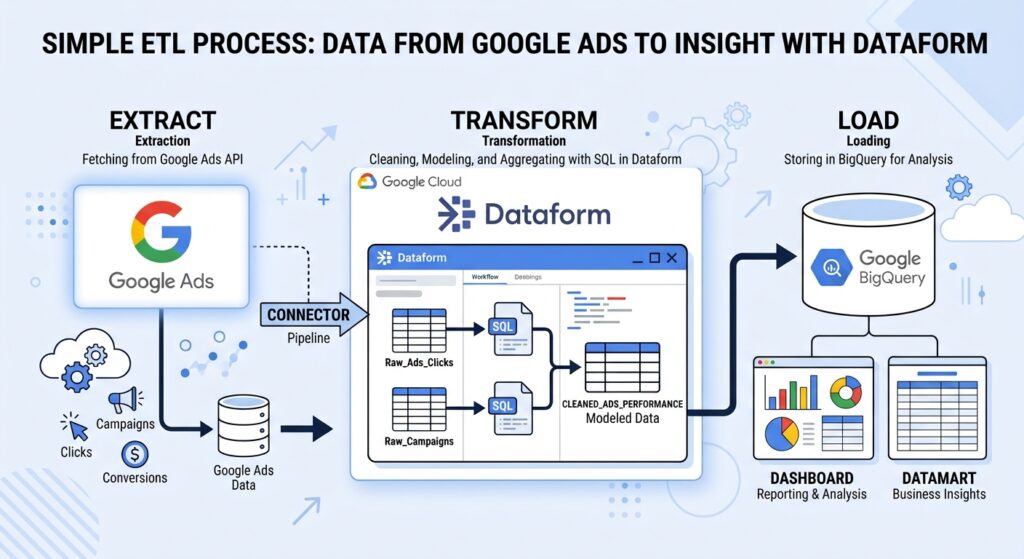
Now is the time to invest in a solid data warehouse. As marketing data scales, querying, for instance, raw Google Ads tables directly quickly becomes expensive and inefficient. What’s more, third-party ETL tools can become quite costly as data volumes scale, since many vendors charge per row synced or per active connector. Beyond costs, Google Ads data is heavily fragmented. Metrics and dimensions are split across separate raw tables, making raw analysis complex.
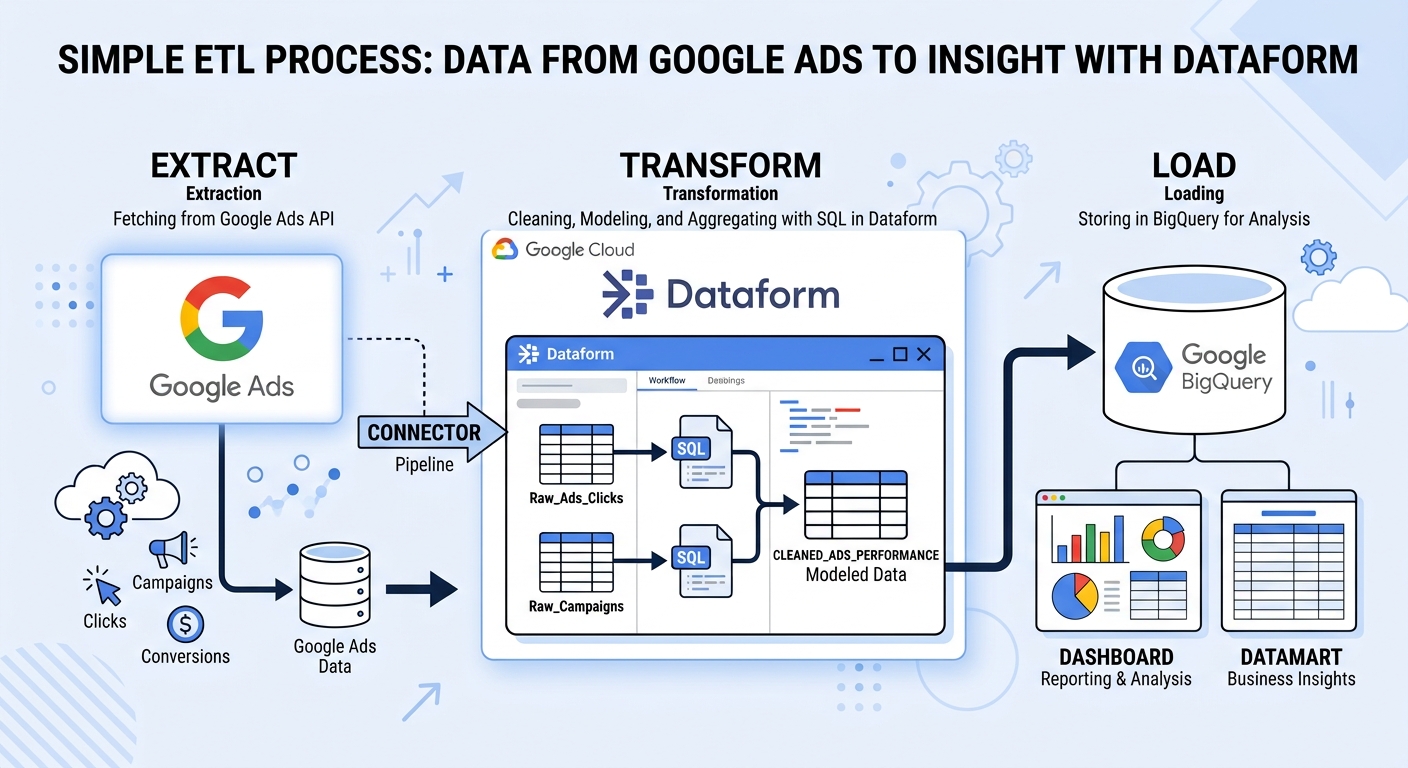
The solution? Shift to a ELT (Extract, Load, Transform) pipeline. Instead of paying for external connectors or settling for GA4’s pre-aggregated reports, you save raw data directly into Google BigQuery and use Dataform to model it exactly how you want.
In this step-by-step guide, you’ll learn how to build a scalable, automated Google Ads data pipeline using BigQuery Data Transfer Service and Dataform. While this post focuses on campaign-level data, the exact same architecture applies to ad groups, keywords, search terms, and beyond.
The big picture: a 5-step pipeline architecture
This pipeline follows a modular five-stage flow:
- Set up the Google Ads Data Transfer
- Initialize Dataform repository and workspace
- Declare sources
- Create model
- Scheduling
Please note that this is a simplified version of a marketing data pipeline. While an enterprise setup might, for instance, include data quality assertions, this 5-step framework gives you everything you need to get a clean, automated campaign-level pipeline running in Dataform.
Step 1: set up the Google Ads Data Transfer via BigQuery
First, we need to offload Google Ads data in BigQuery. Fortunately, this is a piece of cake. The Google Ads Data Transfer automatically extracts Google Ads reports and loads them directly into BigQuery. All you need is a Google Ads Customer ID, which is usually being found at the right top corner of the Google Ads interface.
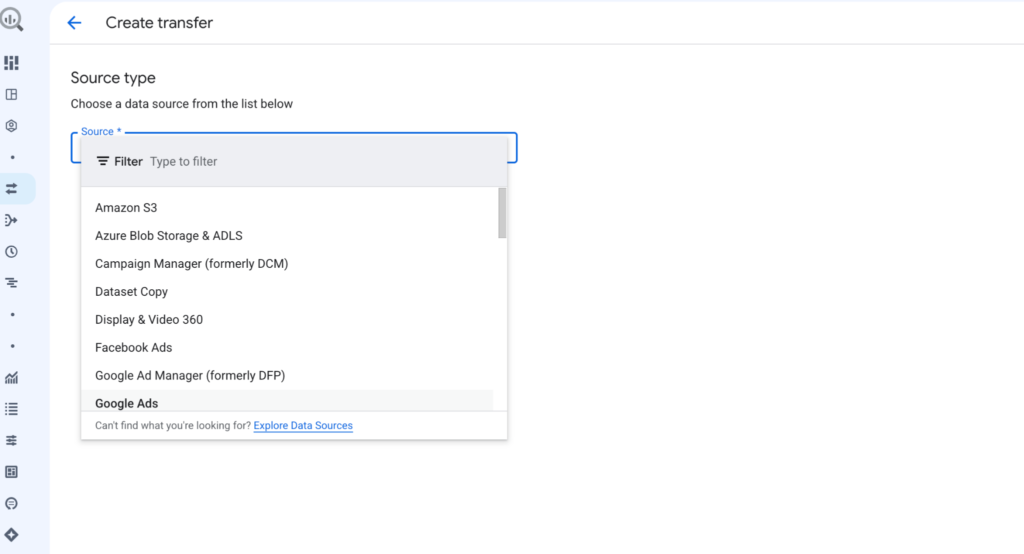
In the BigQuery menu, go to Data Transfer. There you will see the option to create a Transfer. From the dropdown menu, choose Google Ads and fill in the Customer ID. For now you can use the standard report type. I advise you to include PMAX campaigns, so the following option needs to be checked:

If you follow the steps, you will be prompted to create a new dataset, but keep in mind to use the same regions for all datasets. For instance if you want to join Google Ads-data and GA4-data, the datasets must be in the same region.
Before saving, you can choose the cadence of the Google Ads export. I would leave it once per 24 hours.
Step 2: initialize your Dataform repository
Setting up a Dataform repository sets up the backbone of our marketing pipeline. In Dataform, a Repository acts as the central Git container for your code, while a Development Workspace acts as an isolated sandbox where you edit, compile, and test SQLX models without affecting production. If you want to know more about the advantages of Dataform, please read our blog about the tips and tricks.
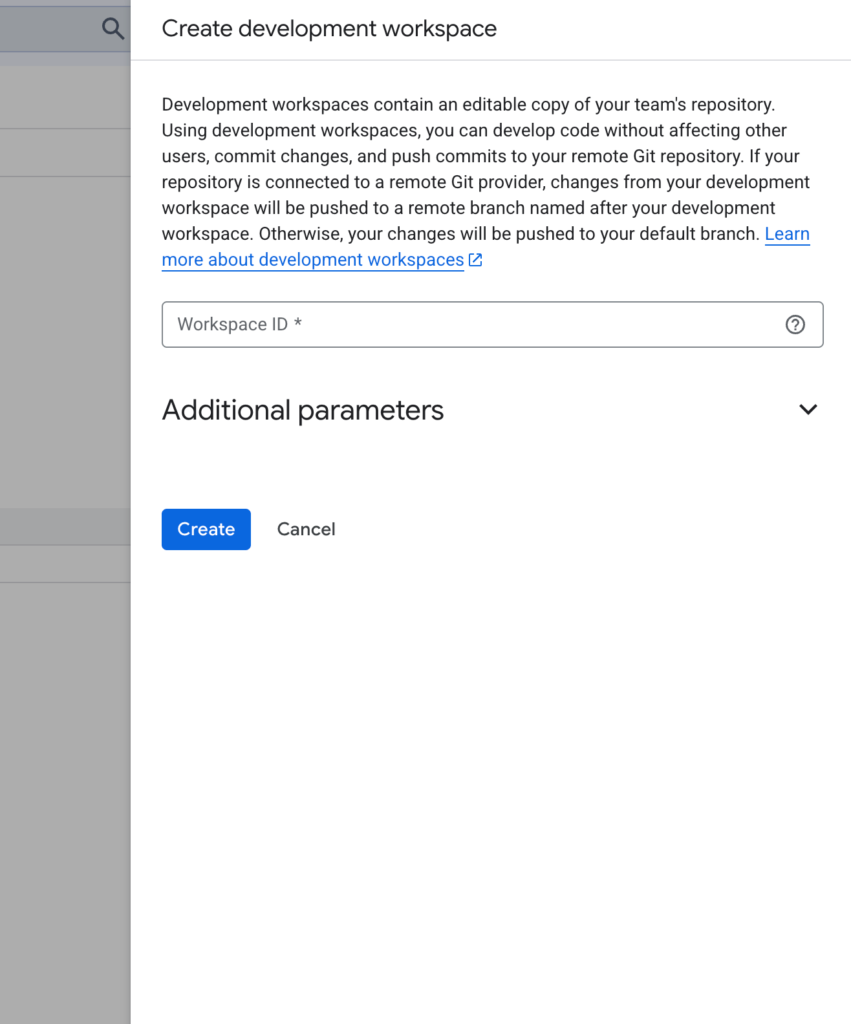
It is now time to create a repository. Just make sure that you have BigQuery Admin and Dataform Admin rights. In the left menu go to Dataform and create a repository. Give the repository a name, something like ‘marketing-pipeline-company’ and pick a region. After initializing a repository, you can create a workspace:
Step 3: declare source tables in Dataform
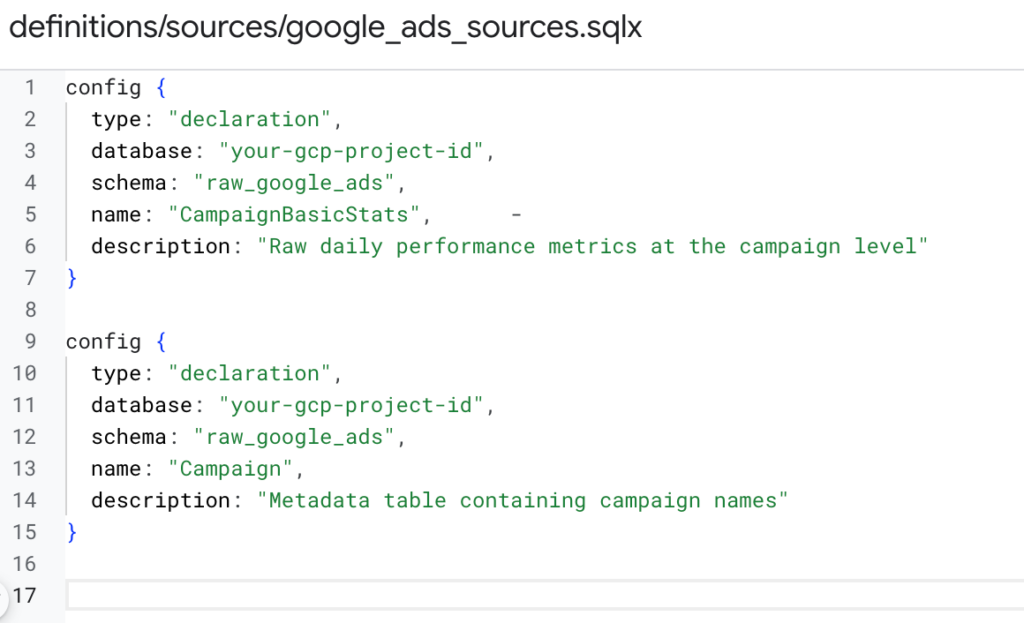
Once the Google Ads Data Transfer has started to offload data and a Dataform repository is made, we can declare the sources. By default, Dataform does not know that tables like CampaignBasicStats (table in the Google Ads Data Transfer) exist in your raw BigQuery dataset. Declaring them explicitly informs Dataform where to find the raw inputs, allows it to track lineage, and enables you to reference these tables across all models using the ref() function.
Create a new file in your workspace and name it definitions/sources/google_ads_sources.sqlx:
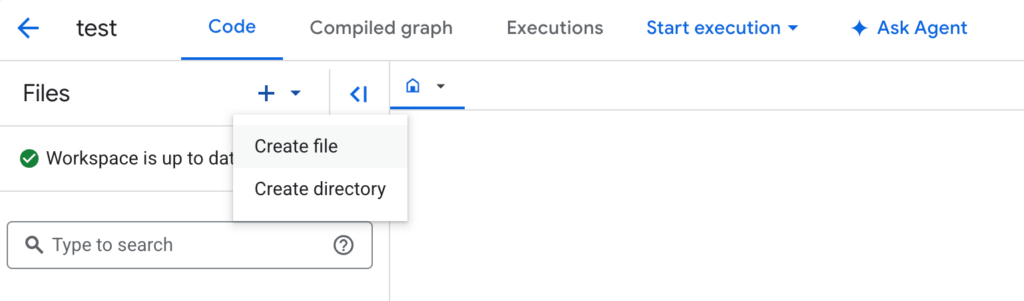
In the file you add the following blocks and replace the database with the name of your BigQuery project. Do the same for the schema (the name of the dataset you created in the Data Transfer) and replace the name with the exact name of the Google Ads-tables (usually CampaignBasicStats_xxxxxxxx is being used where the last part is the Customer ID). In this case we only want to declare the table with the campaign names and the table with the campaign metrics.
Step 4: build transformation models (SQLX)
In Dataform, SQLX is an extension of standard SQL created specifically for data modeling. It combines BigQuery SQL with a config {} block (to define metadata, schemas, and target output types) and JavaScript expressions like ${ref()} to automatically build dependencies between models.
Let’s make three files:
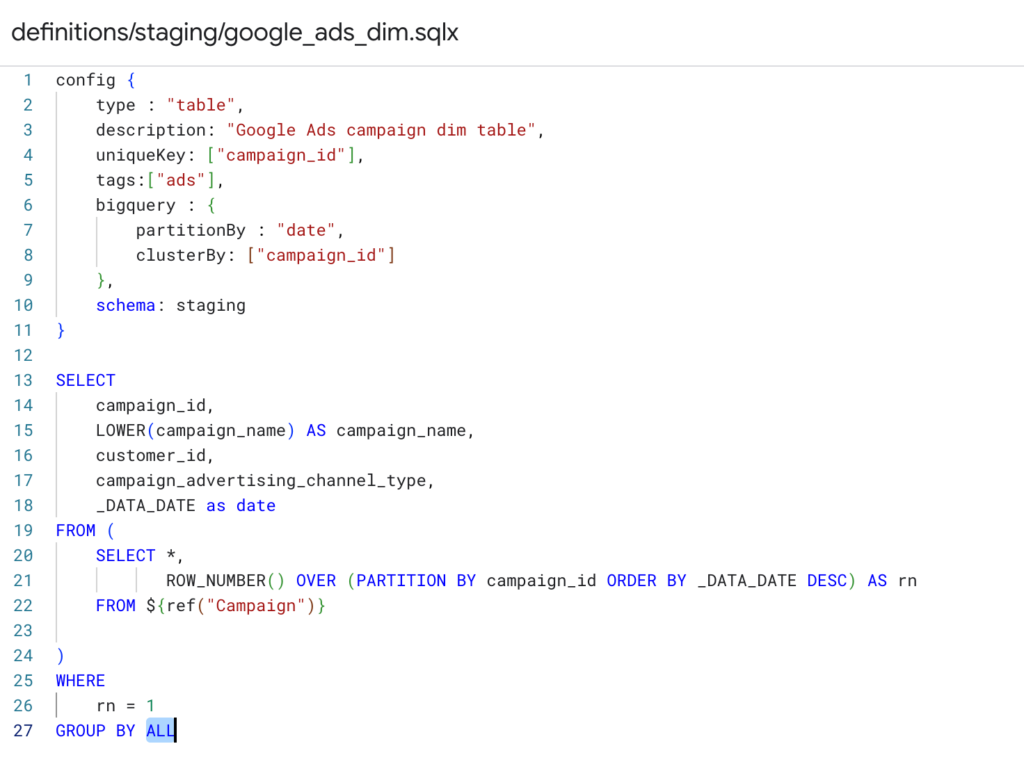
- definitions/staging/google_ads_dim.sqlx
- definitions/staging/google_ads_fact.sqlx
- definitions/mart_google_ads/google_ads_reporting.sqlx
In the first table we will make an overview of all the campaign names:
We can do the same for the metrics table:
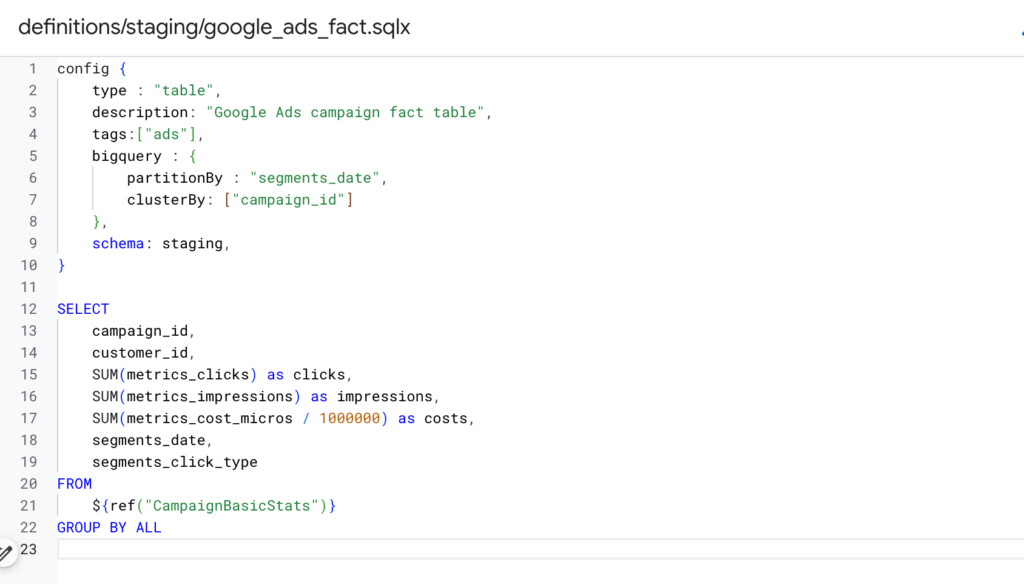
Because of the declaration configuration, we can use a simple name alias to reference raw BigQuery tables using ${ref()}. In addition, the config {} block is a core element of every SQLX model. It acts as the metadata of a model, including:
- type: determines if Dataform creates a BigQuery view, table, incremental table, or assertion. For now we have opted for table, but incremental would be preferable to add data from each campaign everyday without loading the entire table everyday.
- schema: Specifies the target BigQuery dataset.
- description: Adds documentation directly to the BigQuery table catalog.
- tags: For each model we can include tags so that we can easily schedule
- bigquery: Configures performance optimizations like partitionBy and clusterBy.
Ultimately we can join these staging tables in a reporting table.
You can find the queries on my Github.
Step 5: schedule the pipeline
To ensure your marketing dashboards always display up-to-date data, you must automate the execution flow. Dataform has two built-in features: release configurations and workflow configurations.
First of all, you need to create a release configuration. The reason for this is Dataform needs to compile the code at a specific point in time so that it can be safely run. If compilation fails because of a bad merge request, the workflow configuration will continue using the last known good compiled release.

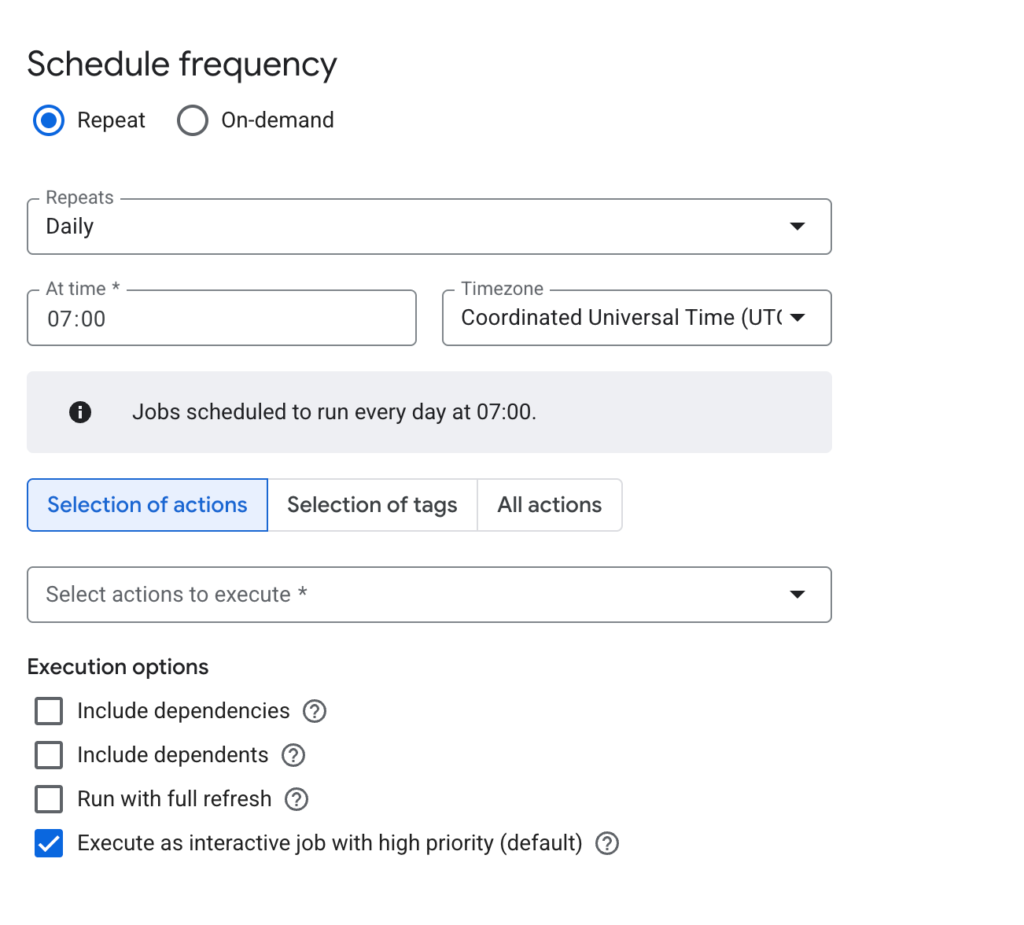
Secondly, you have to create a workflow configuration. Basically the workflow configuration actually runs the SQL code inside BigQuery. Here you can set your execution time and select all actions or tags (have you noticed I added the tag ‘ads’ in the config?) you want to run. Because we use ${ref()} in the models, a model will not run until all of its upstream dependencies have finished successfully.
Next steps
Building a Google Ads pipeline with BigQuery Data Transfer Service and Dataform transitions your analytics from manual, fragmented reporting to an automated workflow. But Google Ads is only one piece of the puzzle. To build a true single source of truth, here is how to expand your architecture:
- Capture the entire customer journey: Bring Facebook Ads (Meta), TikTok Ads, and Klaviyo email data into BigQuery. Modern conversion paths are rarely linear as customers interact with multiple touchpoints before buying.
- Unify attribution with GA4: Every ad network uses its own attribution model, often taking 100% credit for the same conversion. By joining all paid media spend directly with GA4 conversion events in Dataform, you create an unbiased, single source of truth across all channels.



 English
  Nederlands